Vibe Sensei for Slack
AI agents that answer and act inside your Slack.
What Vibe Sensei does in Slack
Vibe Sensei is a desktop application — a multi-agent AI cockpit where a developer runs and supervises AI coding agents, each in its own visible terminal pane, working on the developer's own code on their own machine.
The vibe-sensei Slack app is the two-way bridge between that desktop cockpit and your Slack workspace:
- Inbound — you talk to your agents from Slack.
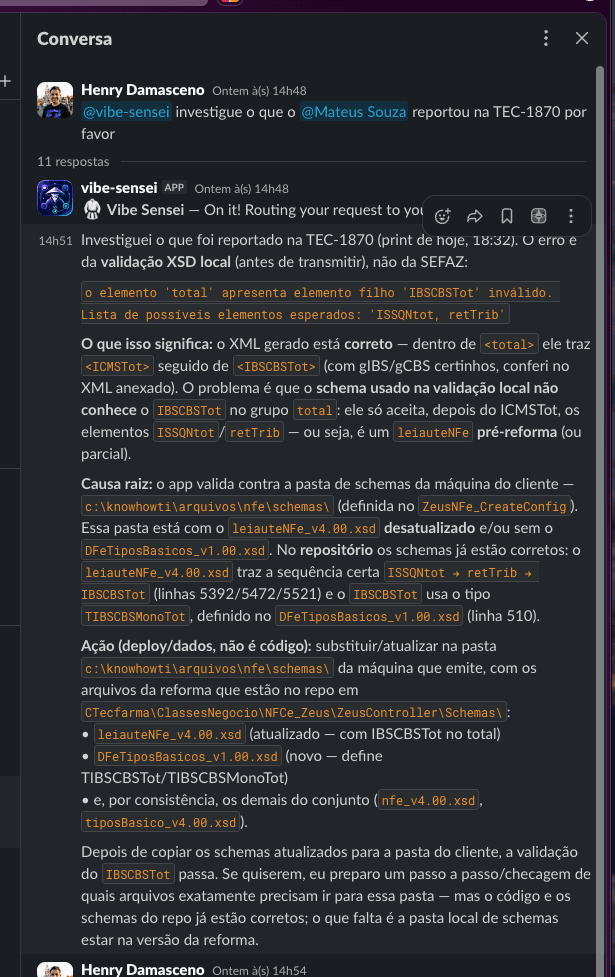
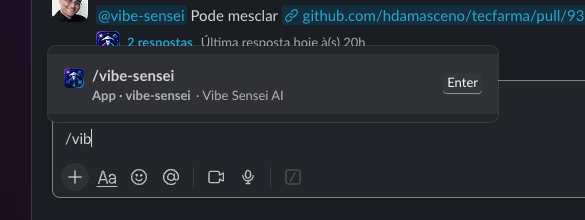
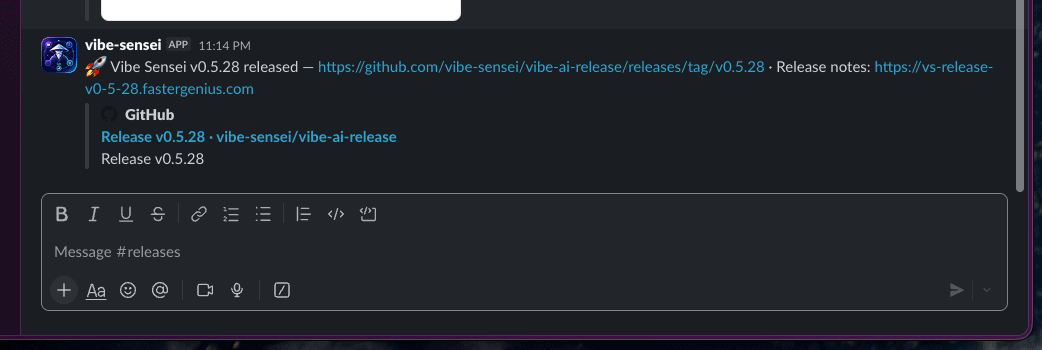
@mentionthe bot (or use the/vibe-senseislash command) in a connected channel. Your prompt is relayed to your online Vibe Sensei desktop app, an AI orchestrator agent does the work, and the answer is posted back into the same Slack thread. - Outbound — your agents keep you posted. The bot posts AI-generated status updates into your chosen channel: a long-running mission finished or failed, a usage cap was reached, a worker agent died, or a new release shipped.
The bot only reads messages that are explicitly addressed to it — an @mention, a slash command, or a channel you invite it into. It does not passively read or archive your Slack conversations.
About the app
Vibe Sensei for Slack turns a Slack channel into a remote control for your own AI development agents. After you connect a workspace and pick a channel, the bot pairs that channel with your Vibe Sensei desktop installation and the code repository you are working on. From then on, anyone in the channel can hand a task to your AI orchestrator — “summarize the open PRs”, “what broke in the last build?”, “kick off the release checklist” — simply by mentioning the bot, and the orchestrator's real answer arrives back in the thread, including any relevant links (pull requests, deployments, commits). Meanwhile, the desktop app pushes proactive notifications to the same channel so the team can follow long-running agent work without watching a terminal.
The heavy lifting happens on the paired desktop app, which must be online: agents run locally against your own code and your own AI provider subscriptions. The Slack bot itself is a thin, secure relay — the bot token stays server-side, requests are signature-verified, and message content is relayed to your own machine rather than stored.
How to add Vibe Sensei to your Slack
The Slack connection lives inside the Vibe Sensei desktop app — there is no public one-click install button because the OAuth flow requires a signed-in Vibe Sensei account to complete securely. Follow these steps:
- Download & sign in. Download the Vibe Sensei desktop app and sign in to (or create) your Vibe Sensei account.
- Open a workspace with a git remote. The Slack integration binds to a repository. Open a workspace in the app that has a git remote configured — the SLACK settings section becomes available once an eligible workspace is active.
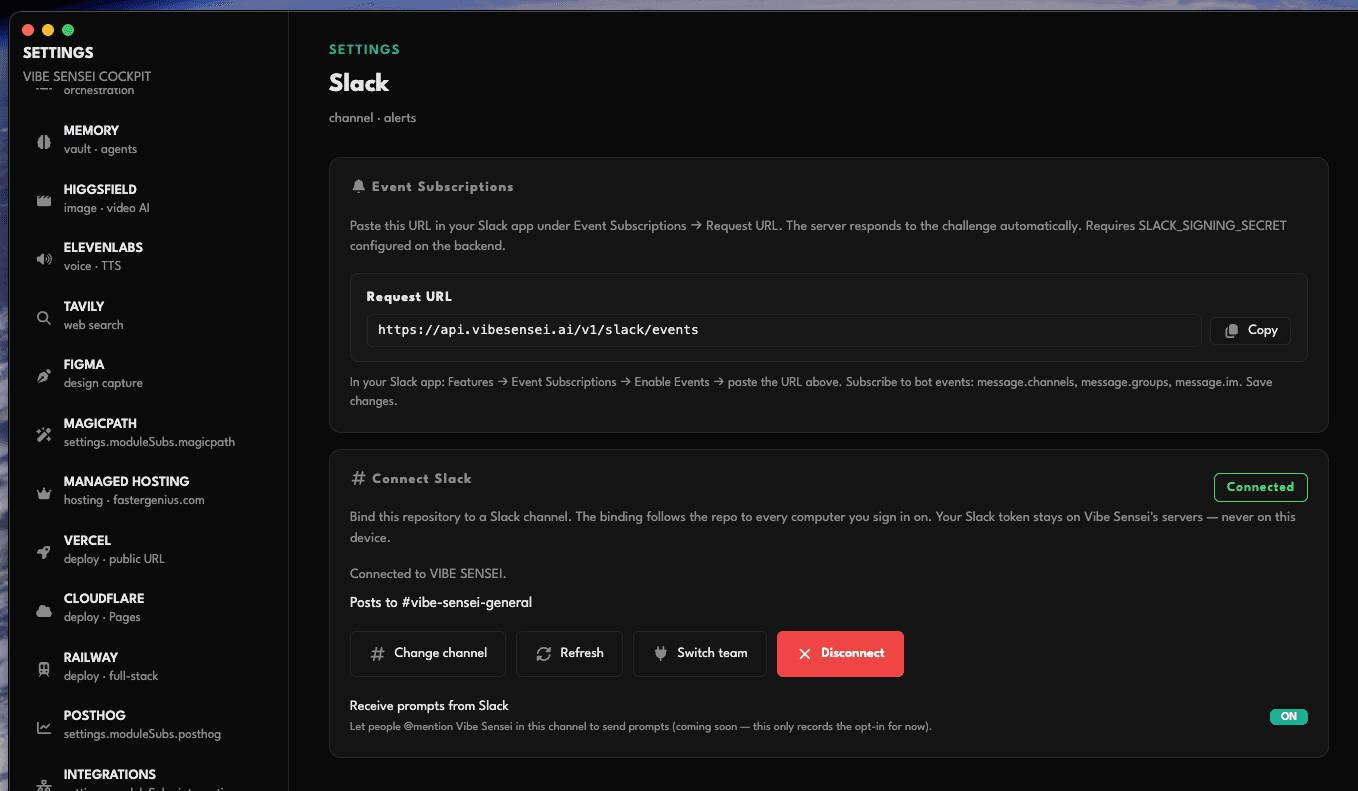
- Open Settings → SLACK. Click the Settings (gear) icon in the app. Select SLACK from the left-hand panel. You will see a Connect Slack section with an “Add to Slack” button.
- Click “Add to Slack.” The app opens Slack's OAuth consent screen in your browser. Review and approve the requested permissions for your Slack workspace.
- Return to the app — it confirms automatically. After you authorize in the browser, the desktop app polls for the connection in the background. Within a few seconds the status badge switches to Connected and shows your Slack team name.
- Pick a channel. Click Pick a channel, choose the channel you want the bot to post to from the dropdown, and click Set channel. Then run
/invite @Vibe Senseiin that Slack channel so the bot can post there. - Talk to it. With the desktop app online, either:
@Vibe Sensei summarize the open PRs on this repo— the bot replies in the thread of your mention, or/vibe-sensei summarize the open PRs on this repo— you get an immediate acknowledgment, then the answer in the channel.
- Receive updates. The bot posts status messages on its own when agent missions complete or fail, usage caps are hit, or new releases ship.
The bot responds only to messages that address it directly — @mentions and /vibe-sensei commands. Plain channel chatter is ignored. If your desktop app is offline or the channel isn't connected yet, the bot replies with a short message explaining exactly that.
See it in Slack
Privacy & your data
The Slack integration is designed to touch as little of your data as possible: the bot token is stored encrypted (AES-256-GCM) server-side, messages are only read when explicitly addressed to the bot, relayed message text is not stored, and your Slack content is never used to train AI models or sold to anyone.
Read the full Privacy Policy for how Vibe Sensei collects, manages, and stores data — including the third-party services involved and the dedicated section on messaging integrations like Slack.
Data deletion & support
To disconnect Slack, use Settings → Slack → Disconnect in the desktop app, or remove the app from your workspace's Manage apps page — either stops all access.
To request deletion of any data associated with your Slack workspace or account, or for any support question about the Slack app, email support@vibesensei.ai. We respond within one business day and complete deletion requests within 30 days.
Ready to put your agents in Slack?
Download Vibe Sensei, sign in, then connect from Settings → SLACK inside the app.